🎥 Background
Your loading screen background can be a static image or a video. If both are provided, the video takes priority.
📁 Remember: Place any images or videos inside the
html/assets/folder so they load correctly.
📷 Static Image Background
"backgroundImage": "./assets/path/to/background.png",
"backgroundVideo": ""
Static Image Notes
If you want to use a static image, leave "backgroundVideo" empty.
Even static images receive subtle ambient movement and lighting effects for depth.
🎬 Video Background (Local WebM)
"backgroundVideo": "./assets/path/to/bg.webm"
Best Performance
Local video files load the fastest and avoid any YouTube embedding restrictions.
Supported formats:
.webm(recommended)
Place your files inside:
html/assets/
📺 Video Background (YouTube)
"backgroundVideo": "https://www.youtube.com/watch?v=abc123"
Video Takes Priority
If "backgroundVideo" is set, the static "backgroundImage" will not be used.
⚠️ YouTube Embed Requirements & Error Handling
YouTube videos must meet several requirements to play inside FiveM's Chromium-based UI.
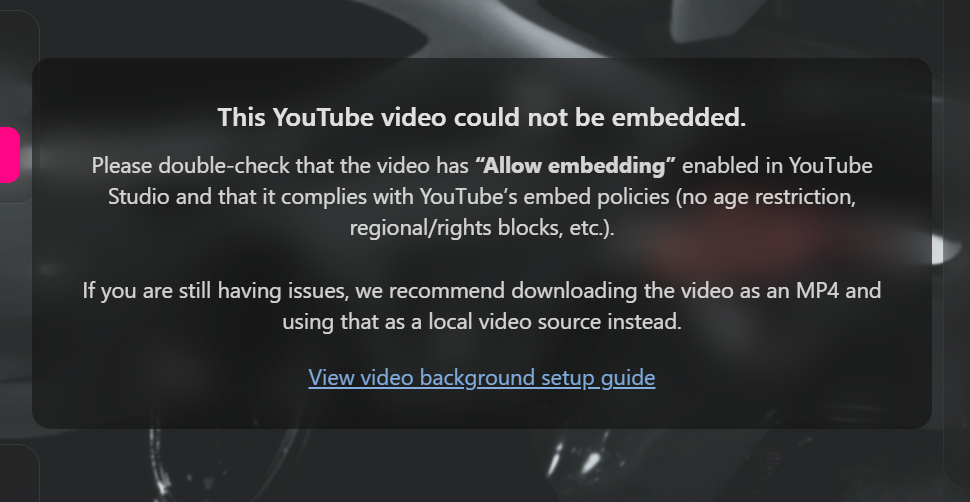
If the loading screen detects an embedding issue, it will automatically:
- Show a graceful error modal, and
- Fall back to your static background image with animation.
Required YouTube Settings
Make sure your video has:
- Embedding enabled
(YouTube Studio → Video → Settings → Permissions → “Allow embedding”) - No age restriction
- No region/copyright blocks
- Public or unlisted visibility
If any of these are missing, YouTube will block the embed request, and a failure modal will appear.
How to Fix YouTube Videos That Won't Play
- Open YouTube Studio
- Click Content
- Select the video used in your config
- Check the Restrictions column
- Fix any of the following issues:
- Age-restricted → remove restriction
- Region blocked → allow all locations
- Embedding disabled → enable permissions
The UI will automatically detect errors (Invalid Frame 153, blocked iframe, etc.) and show helpful guidance.
Final Fallback: Use a Local WebM (Recommended)
If your video still refuses to embed, even after correcting settings:
Download the video and use a local .webm file instead.
This completely bypasses YouTube’s restrictions.
Place the file here:
html/assets/webm/background.webm
Then update your config:
"backgroundVideo": "./assets/webm/background.webm"
This is the most reliable solution and prevents future YouTube policy issues.
Automatic Fallback Behavior
If your YouTube or local video fails:
- A modal explains the issue
- A link to troubleshooting docs appears
- The background animates using your static
"backgroundImage"
This ensures the loading screen remains usable even during media failures.
Preview
Video as the Audio Source
A background video can either be the audio (the player controls it — play/pause, scrub, volume) or play as a silent, looping background while the music player provides the audio. The videoAsAudio flag controls this:
"backgroundVideo": "./assets/webm/ambient.webm",
"videoAsAudio": false
| Field | Description |
|---|---|
videoAsAudio |
true: the video is the audio source and the player controls it. false: the video plays muted in the background and the music playlist is the audio. |
Smart default
If you don't set videoAsAudio, the behavior depends on your config:
- With a
musicplaylist → the video is muted and the music plays. (Music wins.) - Without any music → the video becomes the audio source, so the screen is never silent.
Set videoAsAudio explicitly to force either behavior regardless of the music playlist.
Pause the background video
In muted-ambient mode (videoAsAudio: false), a Pause Video button appears in the bottom-left controls so players can freeze or resume the looping background video.
Multiple Background Videos (Playlist)
backgroundVideo accepts either a single URL string (the original shape) or an array of videos. With an array, the player gains forward/back controls to move between videos, and a playlist counter (e.g. 2 / 5) appears.
"backgroundVideo": [
  { "url": "./assets/webm/intro.webm",  "title": "Night Cruise", "subtitle": "The Vibe RP" },
  { "url": "https://www.youtube.com/watch?v=abc123", "title": "City Lights" },
  { "url": "./assets/webm/skyline.webm" }
]
| Field | Description |
|---|---|
url |
The video URL — a local file path or a YouTube link. |
title |
(Optional) Name shown in the player for this video. |
subtitle |
(Optional) Secondary line shown under the title. |
Backwards compatible
A single string ("backgroundVideo": "./assets/webm/bg.webm") still works exactly as before. The array form is only needed when you want more than one video.
Default labels when title / subtitle are omitted
For any entry without metadata, the player falls back to your watermark:
title→ your watermark name (watermark.label.text)subtitle→ your watermark subheading (watermark.subHeading)- cover art → your watermark logo (
watermark.logo)
Entries can also be plain URL strings (["a.webm", "b.webm"]) — those use these fallbacks for every field.
When a video fails
If a video in the list fails to load, it is skipped to the next one. If every video fails, the screen falls back to the music player (or the animated image background).
Muted-background playlists auto-cycle
In muted-ambient mode (videoAsAudio: false, with a music playlist), a multi-video list plays through automatically: each video plays in turn, then loops back to the first. There are no on-screen forward/back controls in this mode (those appear only when the video is the audio source), and a single video simply loops in place.
Summary of Background Priority
| Priority | Type | Notes |
|---|---|---|
| 1 | YouTube Video | Must allow embedding; otherwise fallback |
| 2️ | Local WEBM | Fastest + most reliable |
| 3️ | Static Image | Used when no video or video fails |
Where to Go Next
- Animate the title → Title Animation page
- Configure the music player → Music Player page
- Back to the Customization Overview → Overview page